WhatsApp Web Privacy: How to Hide Your Chats on Screen
How to blur messages, photos, and names on WhatsApp Web so no one reads your chats over your shoulder.
Is someone behind you reading your chats?
Drag the circle to see the blur on WhatsApp Web.
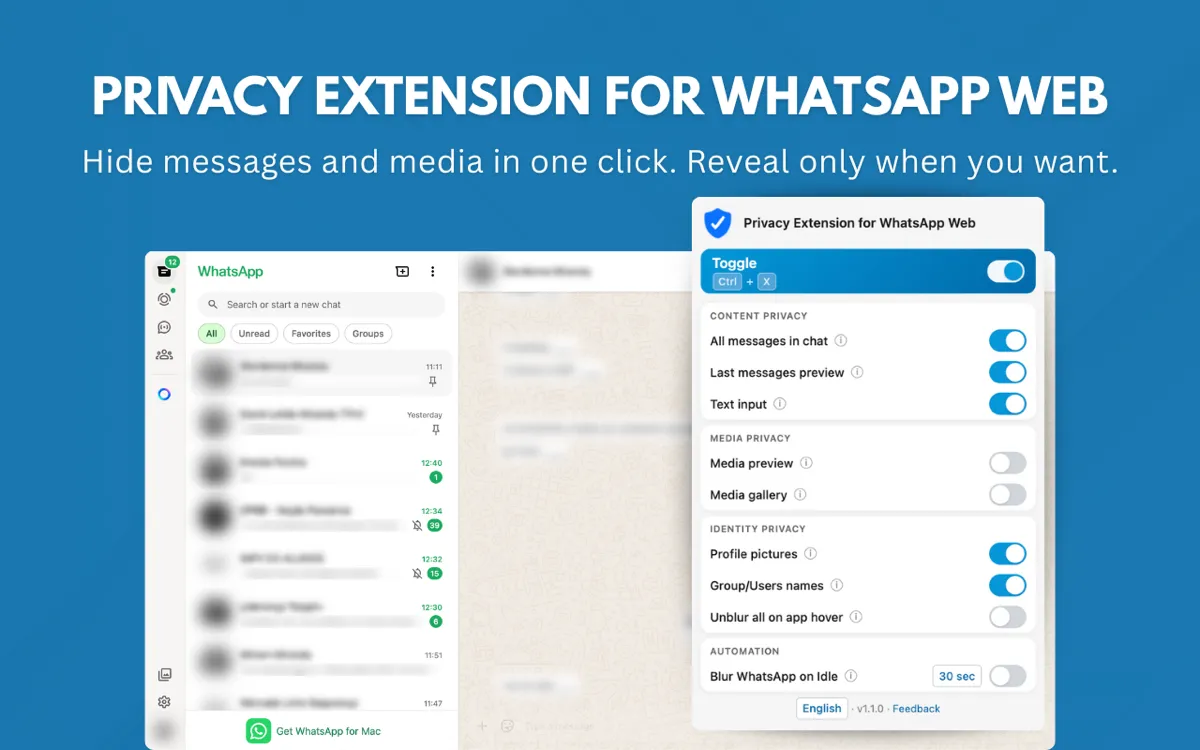
Names and profile pictures are blurred right away. Open the extension to blur messages, chat previews, and the message box too.
Install FreeAt the office, at the store, or in a coffee shop, WhatsApp Web stays open on your screen all day. Anyone walking behind you can see a customer’s name, a message preview, or a photo.
WhatsApp Web has no built-in way to hide your chats. A Chrome extension that blurs your WhatsApp Web screen fixes that.
What the privacy extension does
- Blurs what you choose: messages, chat previews, photos and videos, profile pictures, contact names, and the message box. Everything else stays normal.
- Shows it when you need it: hover over blurred content to see it. Move the mouse away and it blurs again.
- Blurs on its own when you step away: stop using WhatsApp Web and the whole page blurs after the time you pick (15s, 30s, 45s, 1 min, or 5 min).
- Toggles with a shortcut: Alt+X on Windows or Ctrl+X on Mac.
What about your messages?
The extension doesn’t read your messages. It runs in your browser and only changes what you see on screen.
How to get started
- Install the extension from the Chrome Web Store. It’s free.
- Open WhatsApp Web as usual. Protection turns on by itself.
- Pick what to blur and how long to wait before blurring when you step away.
Sources: the privacy extension’s official page and its Chrome Web Store page.
Your chats are already hidden. Now see where each customer stands.
See how it works